An overview of iPhone parental controls
Simple settings for safer screen use
Updated December 16, 2025 • Medically reviewed by Dr. Katie Knight
Medically reviewed by Dr. Katie KnightIn this article
Quick summary
- iPhone parental controls help you guide your teen’s screen use without constant nagging
- Screen Time, content restrictions, and app management make it easier to support healthy habits
- Introducing controls with calm, curiosity-based conversations can reduce conflict and help teens understand why limits matter, and why not introduce them to an app that you don't have to worry about, like luna? It's all about education, health and wellbeing!
Teens are often on their phones, and that can feel overwhelming as a parent.
You might worry about screen time, social media, or access to inappropriate content, but the good news is that iPhones come with built-in parental controls to help manage it all.
A recent luna poll found that nearly 1 in 2 teen girls (46%) say scrolling on social media makes them feel drained and unproductive, meaning parental controls are not just about your peace of mind, but theirs, too.
This guide will walk you through what’s available, how it helps, and practical ways to introduce controls without drama.
How iPhone parental controls can help you
If you’ve ever felt stressed trying to monitor your teen’s phone use, these settings are a lifesaver. They let you:
- Limit screen time and app use: set daily limits for games, social media, or all apps to prevent endless scrolling
- Block inappropriate content: filter explicit websites, music, movies, and books
- Manage downloads and purchases: stop accidental or unauthorised purchases and app installs
- Create phone-free time: schedule downtime during homework, family meals, or bedtime
- Support healthy digital balance: encourage breaks from screens and help your teen learn self-regulation
These controls aren’t about spying on your teen's phone use. They’re about helping your teen develop healthier phone habits and keeping your stress levels lower.
How to put parental controls on iPhone
Thankfully, it is pretty straightforward to put parental controls on your teen’s iPhone!
All you need to do is:
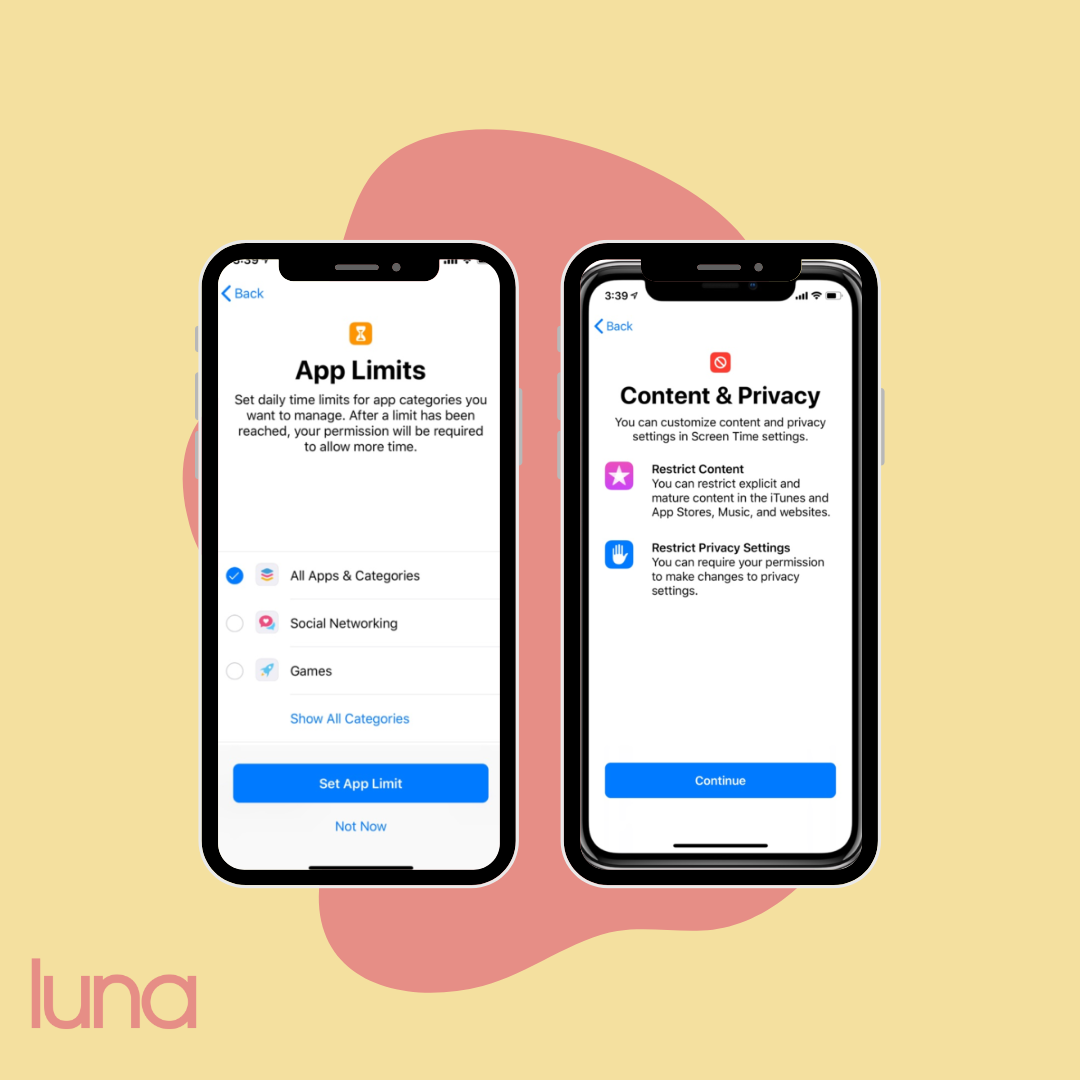
- Go to Settings > Screen Time
- Tap your teen’s name under Family
- Tap Content & Privacy Restrictions, then turn on Content & Privacy Restrictions
Once it is set up, you can add the controls you want and link your teen’s iPhone so you can manage them remotely and view activity reports.
7 examples of how to utilise iPhone parental controls
If you and your teen are new to parental controls, it can be useful to start small and involve your teen in the process.
Begin with a few settings and gradually expand.
Here are some simple ways parents can put iPhone controls into action without it feeling like a total lockdown:
- Homework mode: set app limits during certain hours on school nights so your teen can focus on homework without constant notifications
- Sleep-friendly evenings: schedule downtime at night so phones aren’t keeping them awake past bedtime
- Manage content: restrict explicit films, shows, apps, and music, while still allowing them to access the apps
- Limit adult websites: allows your teen to go on the web without coming across explicit or upsetting content
- Prevent private messages in games: means that your teen won’t receive messages when playing games on their phone
- Weekend moderation: give extra screen time on weekends, but within agreed limits, so your teen learns balance
- Family check-ins: use Screen Time reports as a conversation starter rather than a punishment tool
How parents can introduce these controls without conflict
Let’s be real, no teen wants a parent peeking over their shoulder 24/7.
But iPhone controls don’t have to feel like a trap.
With the right approach, you can introduce them in a way that feels supportive instead of controlling:
- Team effort, not punishment: present limits as a tool to help them and their mental health, not a way to catch them out
- Explain the “why”: share that some limits are about how phones affect sleep, focus, or mental wellbeing, not because you don’t trust them
- Give them a voice: ask which apps they feel need limits and negotiate together
- Build trust, not fear: reassure them that the goal is support, balance, and guidance, not surveillance
Help your teen think of it like setting up a safety net: it’s there to catch them when needed, not to hold them back.
Best parental control apps for iPhone
Sometimes the built-in iPhone settings are enough, but downloadable apps for teens and their parents can give extra support and peace of mind.
These apps let you monitor screen time, set app limits, block inappropriate content, and sometimes even check in on location, all while keeping the conversation collaborative with your teen.
- Qustodio: allows you to monitor and manage your teen’s activity on all devices. It lets you filter websites, set time limits, block apps, and view detailed reports
- Bark: monitors your teen’s texts, messages, emails, and apps for issues such as cyberbullying, threats of violence, suicidal ideation, adult content, and more
- Our Pact: provides screenshots of your teen's device and flags inappropriate or dangerous content
- Mobicip: allows you to control what your teen can access and when – it tracks location and online activity
Parenting in a digital world can be stressful
Which means some form of parental control is often necessary.
But setting up parental controls isn’t about being “strict” or snooping.
It’s about giving your teen space to grow, focus, and feel safe online.
You’re doing something thoughtful, protective, and genuinely supportive.
If you are looking for an app that you can genuinely trust (no parental controls required), check out luna.
On luna, your teen can track their period and mood, read medically-approved content that’s created specifically for young people, and ask anonymous questions to receive a medically-safe answer.
It’s a great way to give your teen something fun to use, which also protects them from social media and is genuinely informative.
How we created this article:
luna's team of experts comprises GPs, Dermatologists, Safeguarding Leads and Junior Doctors as well as Medical Students with specialised interests in paediatric care, mental health and gynaecology. All articles are created by experts, and reviewed by a member of luna's senior review team.
Sources:
Apple "Use parental controls to manage your child's iPhone or iPad" | Accessed 11.12.25
https://support.apple.com/en-gb/105121We'd love to keep in touch!
Sign up to our parent newsletter for emails on the latest teen trends, insights into our luna community and to keep up to date
By signing up, you are agreeing that we can use your email address to market to you. You can unsubscribe from marketing emails at any time by using the link in our emails. For more information, please review our privacy statement.